

SharePoint got an update this summer that you may have noticed. If you have a Microsoft 365 Copilot license, you have probably seen a small floating Copilot icon in the bottom right corner of your sites. It’s easy to click, ask a question, or run one of the built-in suggested prompts and think you are getting the most out of Microsoft 365 Copilot.
If you are still finding your footing with Copilot itself, start with our guide to getting the most out of Microsoft 365 Copilot.
You Have Microsoft 365 Copilot. Now What?
powerstudio365.com
Asking questions and using the built-in suggestions can be helpful and provide quick value, but barely scratch the surface of what Copilot in SharePoint can do. Buried in that same experience is something that may sound like a saved prompt but is much more: Copilot in SharePoint Skills.
Copilot in SharePoint Skills can save a full repeatable process, calculations, cross-referencing multiple lists, a finished report, not just a canned question.
Here’s what Skills actually are, how they differ from saved prompts, and how far one idea can actually go. This post follows a single business problem: A request stuck in an approval process. We will explore this problem through four levels of SharePoint Skills: a two-minute fix, a smarter version, a full management report, and a hand-built executive dashboard. Along the way, you will see exactly what is possible just by prompting Copilot, and where you have to write the skill yourself.
A Real Business Problem Skills Were Built to Solve
An IT coordinator manages equipment requests for their organization. Every request goes through the same two-step approval process: a manager signs off, and then IT reviews and approves. Simple enough on paper.
In practice, requests get stuck. A manager is out for a few days, or an IT approver’s queue backs up again, stalling approvals. The workaround is manual: open the list, scan the Status column, eyeball what’s been sitting too long. It’s tedious enough that it happens irregularly, which means the requests that need attention most are exactly the ones most likely to slip through.
Quick Start – The Shortest Path to a Working Skill
If you want to try it now, here is the short version:
- Open the SharePoint site where your list lives and click the Copilot button in the bottom right corner of the page.
- Describe the check you want, plainly: “Create a skill that reviews the Requests list and flags any request that’s been pending Manager or IT approval for more than 5 business days.”
- Answer any follow-up questions that Copilot may have and then watch as Copilot creates your SharePoint Skill.
- Copilot saves the skill to the SharePoint site, ready for anyone to run.
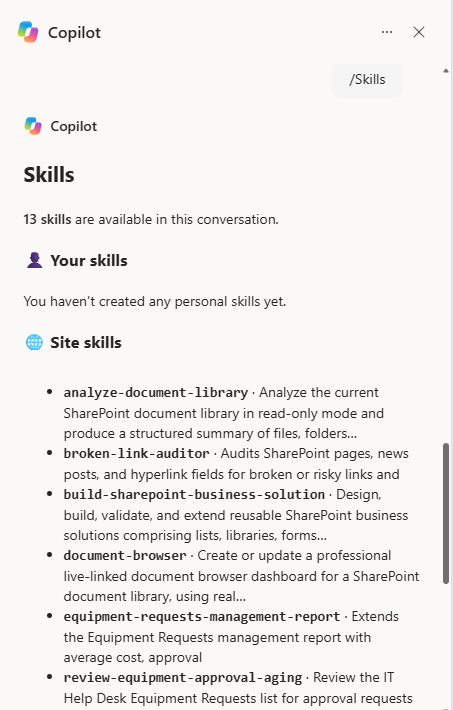
- Run it anytime by typing /Skills to browse all available SharePoint Skills, typing the skill’s name directly (/name-of-skill), or describing the task using the keywords Copilot provides when creating the skill.
That’s the whole loop. The rest of this post covers what’s actually happening at each step and then keeps going. We explore taking the same idea three levels deeper.
What Are Copilot in SharePoint Skills?
Skills vs. One-Off Prompts
A prompt lives in a chat or is a saved list someone has to find and paste into the chat. A Skill is different: it lives on the site as a saved set of instructions, so the same instructions apply every time, for anyone who invokes it.
That distinction matters more than it sounds. If you ask Copilot to “review this document against a checklist,” you get one result shaped by however you happened to phrase it that day. A Skill captures the full instruction set (the checklist items, the tone, the output format) so a teammate who has never seen your original prompt gets a consistent result. The Skill is the process; the prompt is just one instance of running it.
Where Skills Live
Saving a Skill writes it to the Agent Assets library on the SharePoint site. Copilot creates this library automatically when it’s needed, so if you haven’t saved one yet, you won’t find it when you look.
Inside Agent Assets, Copilot stores each Skill as a SKILL.md file: a plain Markdown file, not a proprietary format. That’s worth knowing because it means a Skill is just a document. Site owners with edit permissions can open it, read exactly what instructions Copilot is following, and edit the wording directly if the output starts drifting from what the team actually wants.
What Skills Can and Can’t Do
Skills handle structured, repeatable work on content and structured data already on the site. They follow multi-step logic in a fixed order, apply your team’s naming conventions, formatting standards, or review criteria consistently, and work directly with files, lists, and pages already on the SharePoint site, including calculations across list columns.
They are not a replacement for Power Automate automations, and they can’t see everything the site technically holds. Skills can’t reach outside SharePoint to touch external systems and won’t fire on their own when something changes.
Looking for automated alerts when items or documents change instead? SharePoint Rules: Stop Alerts on Every Small Change is a native SharePoint solution, no Copilot Skill required.

SharePoint Rules: Stop Alerts on Every Small Change
powerstudio365.com
Full Walkthrough: From a Two-Minute Fix to a Custom Dashboard
Step 1: Choose the Right Workflow
Not every task makes a good Skill. The ones that work best share three traits: they are repeatable, they focus on content or structured data that already lives on the site, and they have a clear finish line, an output you can point to and say “that’s done”.
A stale-approval check fits. So does a document review against a checklist, or a weekly status summary. Each has a defined input and a specific, checkable output.
This can trip you up: trying to build a Skill for something too broad, like “help me manage this site”. A Skill is not a general-purpose assistant. It’s a fixed process. If you can’t describe the task in one or two sentences with a clear start and end point, it’s not ready to become a Skill yet. Narrow it down first, then build it.
Step 2: Describe the Skill (Basic)
Click the Copilot button, then describe the task plainly, including exactly how you want the output handled. Skipping that last part matters more than it might seem. Copilot will often ask you to clarify, and it’s worth answering precisely rather than generically.
Prompt:
Create a site-wide skill that reviews the Equipment Requests list and flags any request that's been sitting in Pending Manager Approval or Pending IT Approval status for more than 5 business days. This is report-only: return a table with request ID, status, requester, approver, submitted date, and business days pending. Don't update the list or notify anyone.
Step 3: Create and Save the Skill
After any follow-up Copilot may have, it writes the SKILL.md file and saves it site-wide. Once Copilot creates the Skill, it displays a summary of the rules it follows. This is worth reading to understand what Copilot built.
For example, reviewing the description Copilot provides, we can see Excludes weekends, but not holidays. The original prompt did not specify how to handle holidays, and Copilot didn’t guess. It just stated the limitation plainly instead of quietly rounding it away. That’s the behavior you want from a Skill: not zero limitations, but no hidden ones.
Another helpful tip is to expand the Skill description (blue section) and take note of the “use when the user says” section. This is how you can invoke this Skill without referencing it directly by name.
Step 4: Run It
Once you save a Skill, there are four ways to run it.
Try it. After initial creation, Copilot provides a “Try it” option.
Type /Skills to browse all Skills saved to the site and pick from the list.
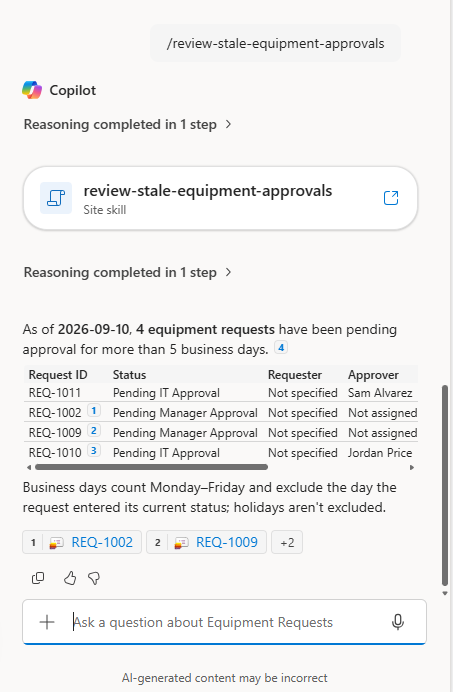
Type the Skill name directly, for example /review-stale-equipment-approvals. Copilot runs that specific skill immediately, no browsing required.
Describe the task again in plain language. When your prompt, for example “flag stale equipment approval requests”, matches what you built the skill to handle, Copilot finds and runs the existing skill on its own, without you naming it.
Here is what the Skill returns: 4 equipment requests have been pending approval for more than 5 business days.
| Request ID | Status | Requester | Approver | Business Days Pending |
| REQ-1011 | Pending IT Approval | Not specified | Sam Alvarez | 11 |
| REQ-1002 | Pending Manager Approval | Not specified | Not assigned | 8 |
| REQ-1009 | Pending Manager Approval | Not specified | Not assigned | 7 |
| REQ-1010 | Pending IT Approval | Not specified | Jordan Price | 6 |
One thing worth noticing: Requester shows “Not specified” on every row. This is not a bug of the Skill. It’s reporting exactly what it found: those fields are genuinely empty in the source data. A Skill can only report what the list stores. It shouldn’t quietly invent a name.
Going Further: Priority Changes the Threshold (Intermediate)
The Basic skill flags anything over 5 business days. All requests are treated the same regardless of urgency. That’s a reasonable first pass, but a High-priority request and a Low-priority request probably shouldn’t wait the same number of days before anyone notices. The intermediate version of the Skill adds exactly one variable: priority.
Prompt:
Create a site-wide skill that reviews the Equipment Requests list using the Status, Priority, and Status Changed fields, and flags any request where Status is Pending Manager Approval or Pending IT Approval and it has been in that status for more than 3 business days if Priority is High, or more than 5 business days for all other priorities. Calculate business days elapsed from the Status Changed date to today. This is report-only: return a table with request ID, status, priority, requester, approver, status changed date, and business days pending. Don't update the list or notify anyone.
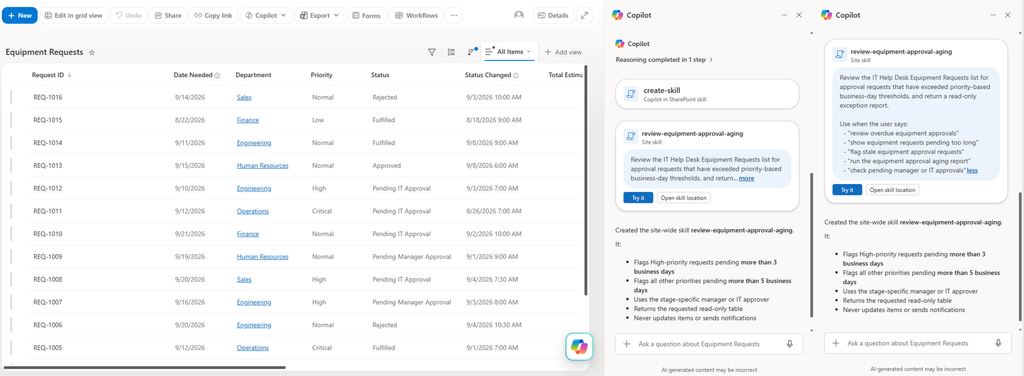
Copilot’s summary of the rule it built:
Flags High-priority requests pending more than 3 business days. Flags all other priorities pending more than 5 business days. Uses the stage-specific manager or IT approver. Returns the requested read-only table. Never updates items or sends notifications.
That’s the entire business rule, restated in plain language before it ever runs. Again, it’s worth checking that restatement every time. If it doesn’t match what you meant, fix the prompt before saving the skill, not after you have been running the wrong version for a week.
One thing to watch for here: Critical priority still uses the same 5-day threshold, since the original prompt only singled out High priority. REQ-1011 is at the top of this list for a reason. It’s a Critical request that has been stalled for 11 business days, far longer than a Critical item should be waiting. To improve the skill, it would be worth deciding whether Critical deserves its own tighter threshold once a real gap like this shows up.
Going Further: A Five-Section Management Report (Advanced)
Checking a table every morning can be useful, but nobody wants to run multiple Skills to get the full picture of the pending requests. The advanced version consolidates everything into one report: overall status, what’s stale, what’s due this week, and what’s fulfilled.
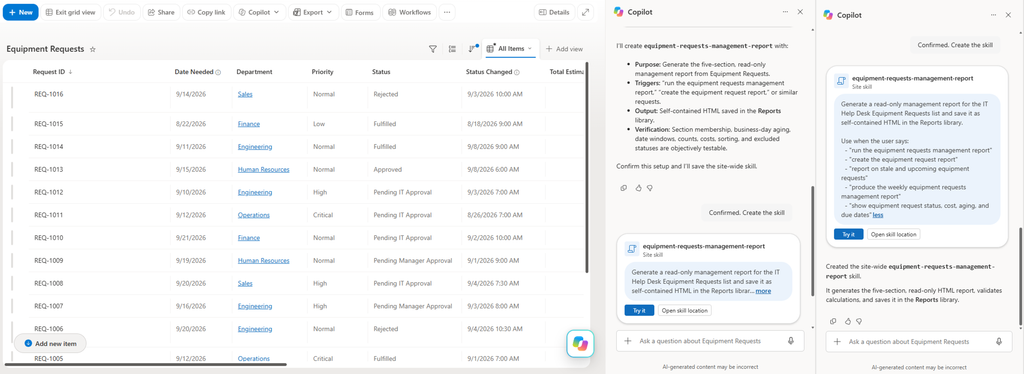
We can then run this new skill by naming it directly:
Copilot’s completion summary:
16 requests reviewed; 11 open. Open estimated cost: $11,075. Stale: 7. Due September 10-17: 5. Fulfilled September 3-10: 2. Source data wasn’t changed, and no notifications were sent.
The actual report the skill creates:
The overlooked detail: looking closely at the date ranges of Due This Week and Fulfilled Last Week, we see that both are exactly 7 days, anchored on the current date, not the current calendar week.
A Skill that creates reports like this in a defined location opens the door to Power Automate. The Skill still requires someone to open Copilot and ask for the report. A Power Automate flow can then monitor the Reports library for new or modified files and email them to a specific user group. The report then lands in their inbox the moment it’s generated, instead of waiting for someone to remember to check.
Going Further: Writing Your Own Skill
Everything so far came from describing a task well enough that Copilot got it right on the first or second try. That won’t always be the case.
Sometimes Copilot gets close but not quite right or keeps missing a detail no matter how you rephrase your prompt. Other times you already know exactly what the logic should be. Either way, you don’t have to keep negotiating with a prompt.
Since Copilot stores Skills as a Markdown file in the Agent Assets, you can open the file directly and write or edit it yourself. Hand-authoring one isn’t a special mode. It’s the same file format, just written by you instead of proposed by Copilot.
What the Dashboard Actually Does
The report above answers “what’s going on”. A genuinely useful management report should also answer, “how bad is it, and where is the issue”, which means average cost, approval cycle time, and enough visual hierarchy so that the most urgent items are obvious at a glance. None of that is worth re-describing to Copilot from scratch every time. That’s what a hand-written skill, equipment-requests-executive-dashboard, adds.
Opening the report, we see a hero band that includes the title, a row of KPI metrics, and a one-sentence description identifying whatever needs priority attention. Below is a row of section links that users can use to jump straight to other sections of the report.
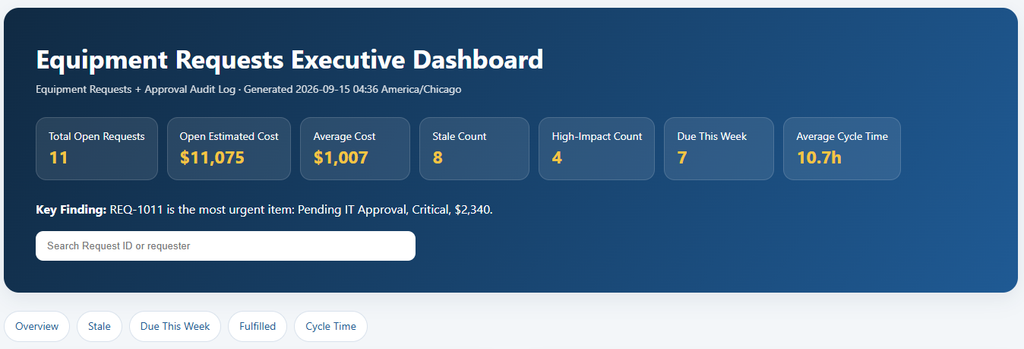
From there it behaves like a small app, not a static printout. A single search box filters Stale Requests, Due This Week, and Fulfilled Last Week at once by request ID or requester. Each table in the report also has its own Department and Priority filters.
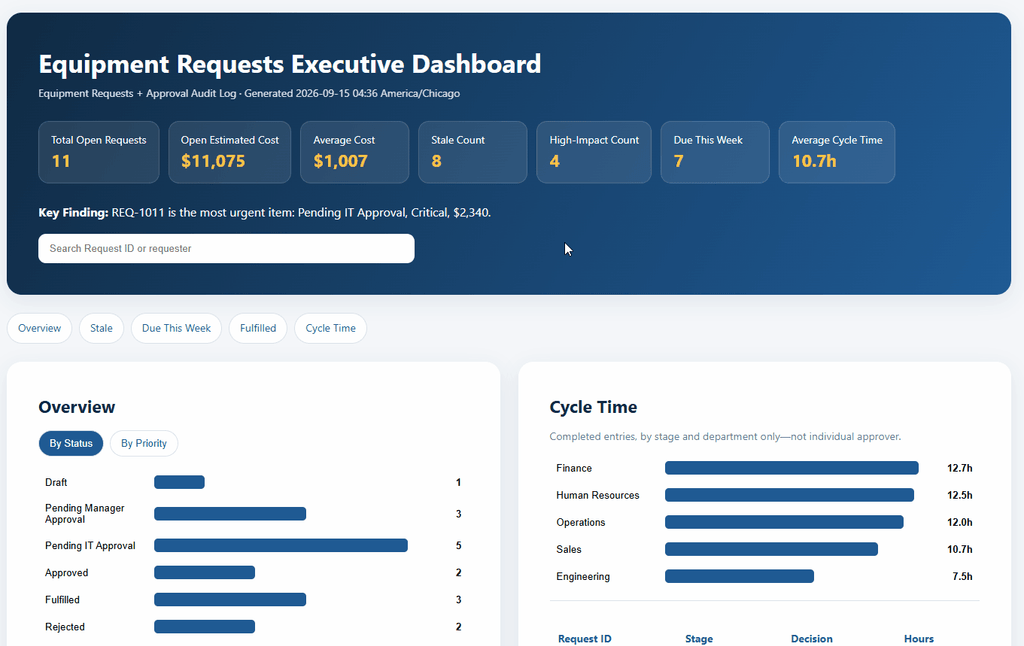
The Overview and Cycle Time render as bar charts at the top of the report. A toggle at the top lets you switch the Overview chart between grouping by approval status and grouping by priority.
Selecting a bar on either visual expands a detail panel to view the specific requests of the selected category. These work together to go from “Finance approvals are slow” to “here are the specific requests that made it slow” in one click.
Getting the Details Right
Getting the dashboard to hold up on every run takes a more specific instruction set than a one-paragraph description. A few details worth specifying explicitly rather than leaving to inference:
- Explicitly Name Columns. The Approval Audit log has an actual
ParentRequestlookup column back to each request. Point to it directly rather than letting Copilot infer a match by parsing the request ID out of a text field. - Spell out date math with a worked example. “Due this week” and “Fulfilled last week” each need an exact anchored formula. A concrete example date closes the gap a plain description can leave open.
- Restate filters as hard rules the skill checks before saving the file. A request in any other status (e.g., Approved) should never reach the stale request section, regardless of its dates.
To get a consistent look and styling, it is worth pinning down the visual design in the Skill. The Skill behind the report above has an entire Report Generation Guidelines section covering exact color palette, typography, layout and sections, spacing, the side-by-side placement of Overview and Cycle Time, and the click-to-expand mechanism. Leaving none of those details for Copilot to improvise on per run.
Wrap Up
Skills take a process that used to live in one person’s head, or in this case, a list nobody checked regularly enough, and turn it into something the whole team can run without a line of code, an IT ticket, or a training session.
The same basic idea scales further than it looks like it should: a five-day threshold check grows into priority-aware aging, into a five-section management report, into a fully custom dashboard. Every step of that ladder is still just Copilot in SharePoint Skills, something you describe in plain language or edited directly as Markdown when prompting Copilot can’t get to 100% of what you’re looking for.
Skills aren’t the only way to cut manual SharePoint work, though. If a process fits a rules-based pattern better than a Skill, see how to automate SharePoint without Power Automate instead.

Advanced SharePoint Rules: Build a Self-Managing System
powerstudio365.com
Pick a task you find yourself checking manually more than once a week and build your first Copilot in SharePoint Skill. Start simple, and then, like in this post, iterate on the idea and build upon that skill to meet more complex requirements. Everything in this post beyond the first version built on the one before because it needed to include one more thing.
If you want to explore SharePoint Skills for inspiration on what’s possible, the Microsoft 365 & Power Platform Community SharePoint Skills Gallery is a great community-built library of ready-made Skills to get you started.
Thank you for reading!
Power Studio365 focuses on practical guidance, design patterns, and real-world lessons from working with Microsoft 365, SharePoint, Power BI, and the Power Platform.
The goal is simple: help you work smarter, avoid common pitfalls, and build solutions that actually hold up in day-to-day use.
Build Faster. Build Smarter. Build with PowerStudio365.
New posts are published regularly, so check back often — or subscribe to stay up to date when new content is released.
Leave a Reply