
If you have relied on that familiar ping in your inbox telling you a file was updated or a list item was changed, you are not alone. Microsoft SharePoint Alerts have quietly helped teams stay informed without having to constantly check sites and libraries.
That experience is about to change.
Microsoft has announced that the classic “Alert me” feature in SharePoint is being retired. Notifications are not going away, but how you receive them is changing. As our digital workspace evolves, Microsoft is moving toward a more modern approach to notifications.
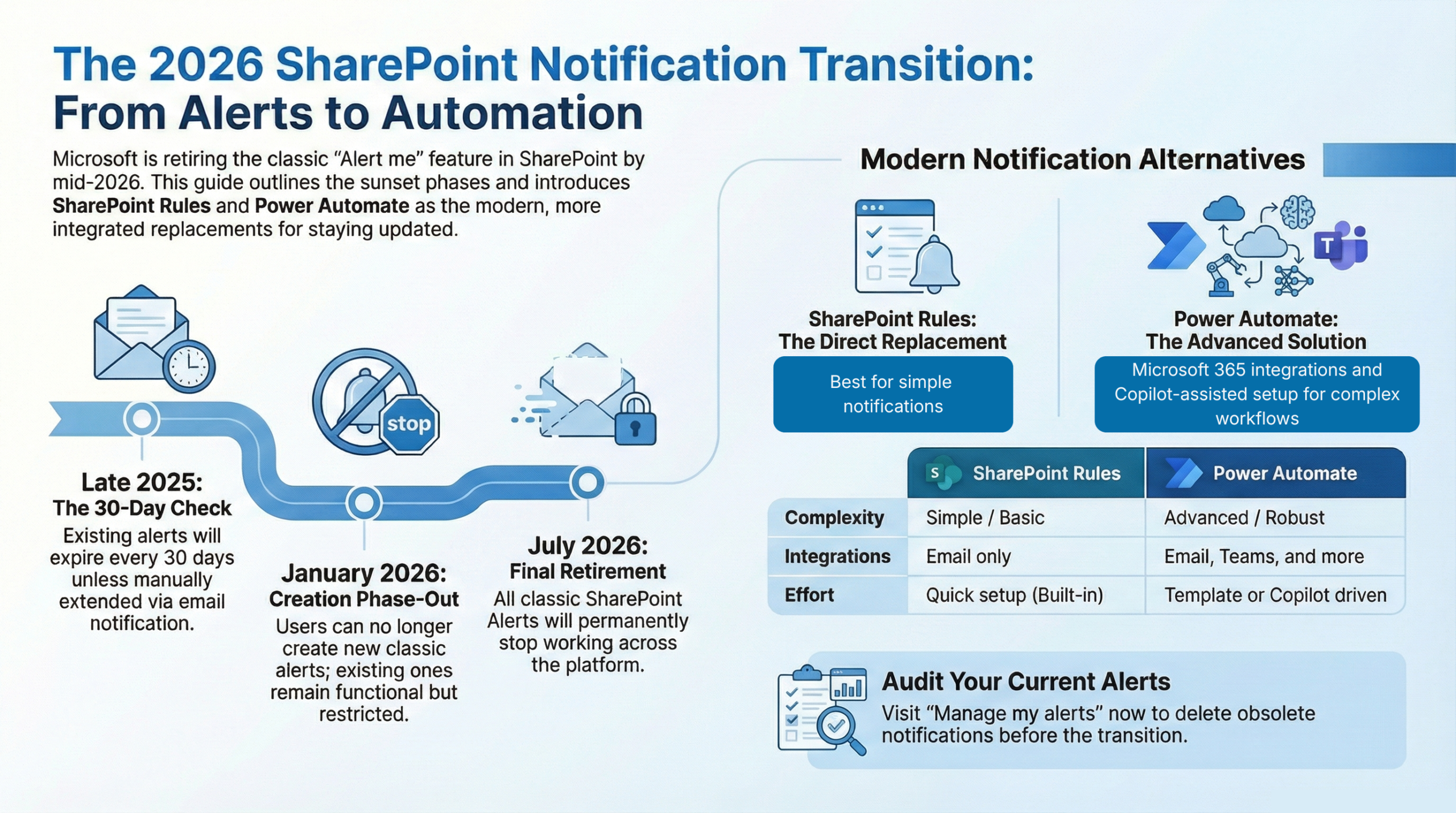
Existing alerts now have an expiration date. As of January 2026, creating new alerts is being phased out, with full retirement planned by July 2026.
The good news? Staying up to date will still be easy, and in many cases, better than before. Newer tools offer more control, clearer messages, and better integration with the apps many of us already use.
In this post, we will walk through what’s changing and how to get started with the new ways to stay up to date.
The Roadmap for Change
The retirement of SharePoint Alerts will happen in phases to give organizations time to adjust. Here is the timeline you need:
Late 2025: The 30-Day Check
Existing alerts will begin to expire after 30 days. When you receive an alert email, it will notify you when the alert is set to expire. If you still need it, you can extend the expiration date.
January 2026: No New Classic Alerts
At this point, you can no longer create new classic SharePoint alerts. Your existing alerts will still function, but you will be steered toward newer notification options.
July 2026: Final Retirement
All classic SharePoint Alerts will stop working. Any alerts you rely on must be replaced with modern alternatives before this date.
If SharePoint Alerts play an important role in your day-to-day work, the key takeaway is this:
Get started today, don’t wait until July 2026.
The earlier you review what you use today, the easier the transition will be, and the more time you have to find a modern replacement.
Why the Change?
Moving away from a familiar tool can feel like a hurdle. But Microsoft isn’t removing alerts without a replacement. The shift is part of a broader move toward more modern, flexible ways to stay informed.
Better Integration
Modern notifications work more naturally with tools like Microsoft Teams, not just email. That means updates can show up where conversations and work are already happening, instead of getting buried in your inbox.
Customization
Classic alerts were all-or-nothing. Newer options let you be more specific, for example, send a notification only when certain fields change to specific values, and customize the notification so you get exactly the information you want.
Less Noise
Many people set up alerts years ago and never revisited them. Over time, that leads to notification fatigue. Modern notification tools are designed to reduce clutter and help you focus on what matters now, not everything that changes.
This change introduces a small learning curve. However, it also creates an opportunity to replace one-size-fits-all alerts with clearer, more useful, and better-aligned notifications that reflect how you work.
Your New Toolbox
As SharePoint Alerts are phased out, you are not losing notifications. Microsoft has provided two main paths to replace classic alerts, and choosing the right one depends on how simple or specific your needs are.
SharePoint Rules: The Direct Replacement
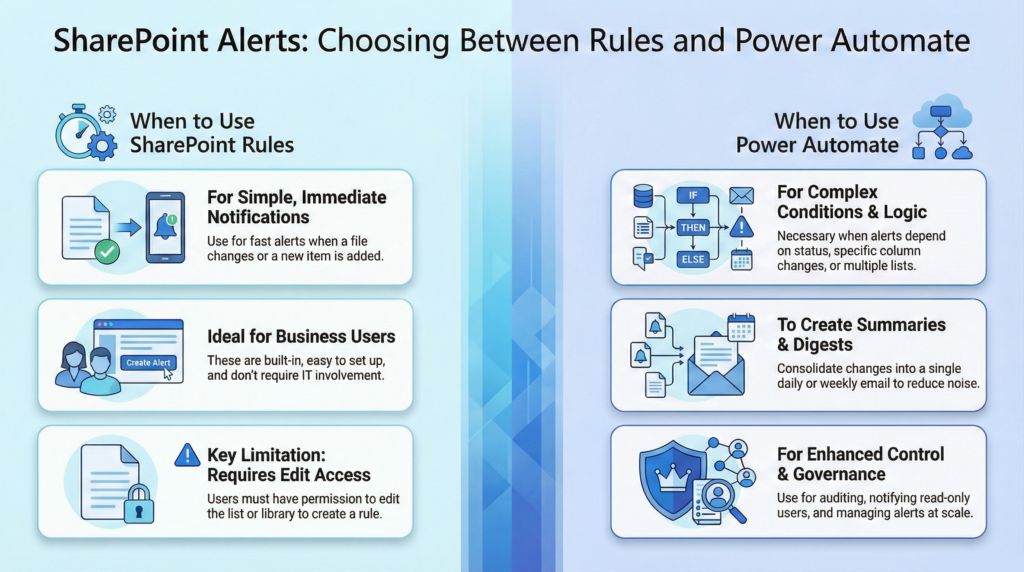
SharePoint Rules are the quickest way to replace most basic notifications. These are built directly into your lists and libraries, so you don’t have to leave SharePoint to set them up. They are designed for basic, personal, everyday scenarios.
You can use SharePoint Rules to:
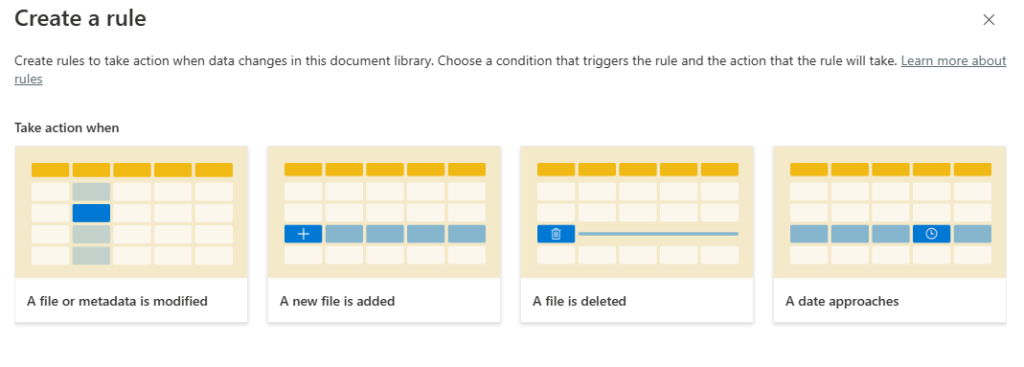
- Get notified when a file or item is added, changed, or deleted
- Alert specific people when an item is updated
- Trigger notification based on simple conditions
Rules are ideal if you want to know when something changes without setting up anything too complex. If your old alert was “email me when new items are added”, a rule is often a direct replacement.
SharePoint Rules have two critical limitations:
- The 3-for-1 Problem: To replicate the classic “any change” alert, you must create three separate rules: one for when an item is added, one for when it’s modified, and a third for when it’s deleted.
- The Permission Issue: To manage rules, you must have “Contribute” permissions on the list or library.
Power Automate: For Advanced Control
For more advanced needs, Power Automate provides ready-made templates that follow an “if this happens, then do that” pattern, so you don’t have to build from scratch. You can also use Copilot within Power Automate to describe your automation and quickly build a new workflow.

Power Automate is the true solution for managing your notifications. It can do things that classic alerts never could and that SharePoint rules cannot. It is built to handle everything from simple notifications to complex business processes.
Some pre-built templates related to the SharePoint alert retirement include:
- Send an email when a SharePoint list or file is updated
- Send an email for changes by others to a SharePoint list item or file
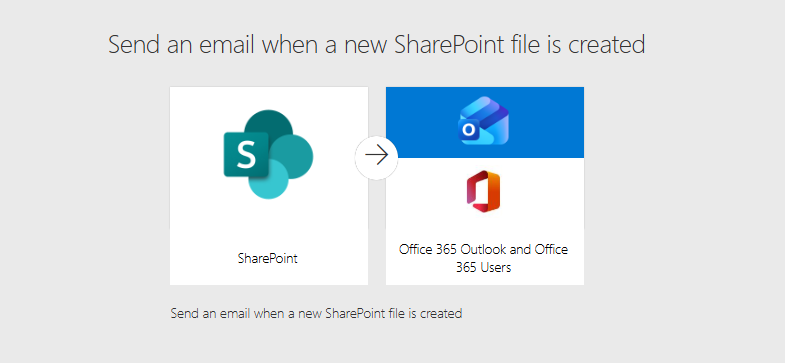
- Send an email when a new SharePoint file is created
- Send an email when a SharePoint list item is created
- Send an email for changes to a SharePoint list item or file created by me
These templates help you get started replacing your classic SharePoint alerts. Find a template that addresses your need, such as “Send an email when a new SharePoint file is created”, sign in, select your site and library, and create the workflow.
If you take this time to review what you want from your alerts, remember that Power Automate is a robust automation engine. It can deliver solutions that go far beyond basic email notifications.
Power Automate can deliver notifications to Microsoft Teams, send customized messages, and implement logic to notify specific people or teams based on the file’s department or category, among other capabilities.
Let’s Build! – Putting Your New Tools to Work
To help you get started, here are some quick examples for replacing your SharePoint alerts with SharePoint Rules and Power Automate.
SharePoint Rule:
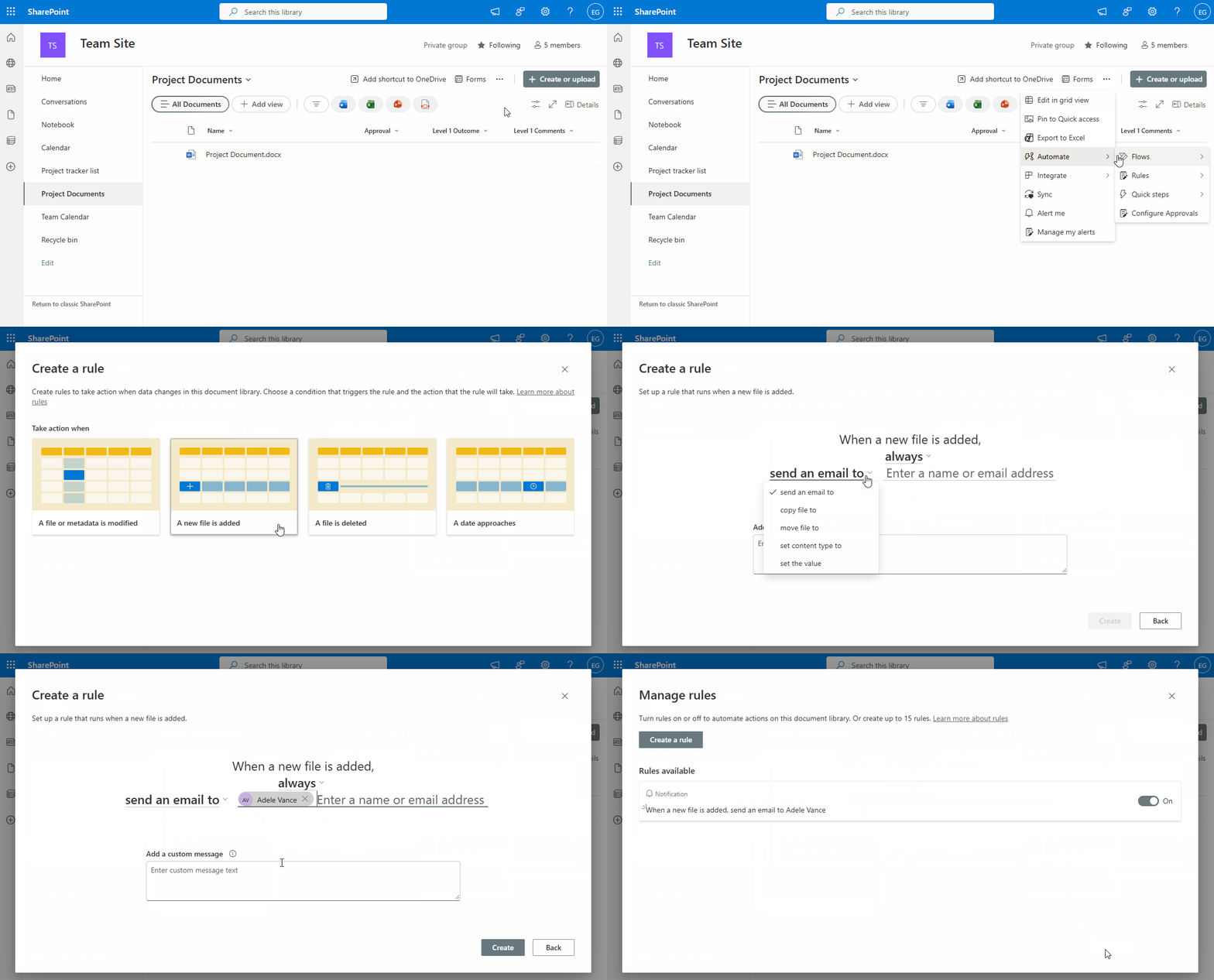
Recreating the Most Common Alert – Notify me when a new file is added
Best for: Getting an immediate notification when a colleague uploads a document.
- Open a SharePoint document library
- In the top menu bar, hover over Automate, then choose Rules > Create a rule.
- On the Create a rule dialog box, select A new file is added
- Review the options to set up the rule to meet your needs. For example, set the rule to always send an email or add a condition based on document metadata.
- Enter the email addresses to receive notifications, and add a custom message if needed.
- Click Create, and you’re done!
SharePoint Rule:
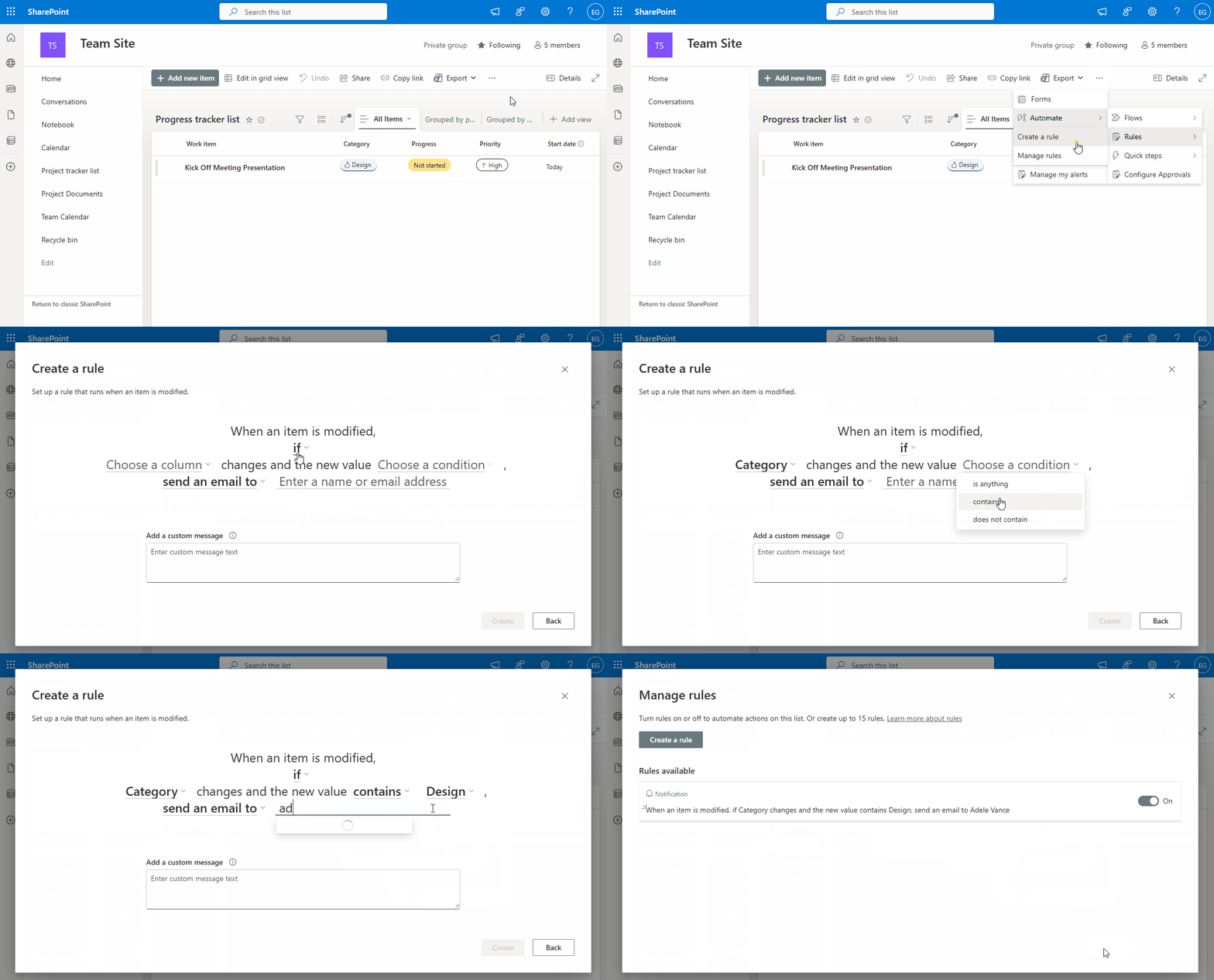
Getting Smarter – Notify me when the category is Design
Best for: Tracking changes to specific details, like project status or a due date.
- Navigate to your SharePoint list
- In the top menu bar, click Automate > Rules > Create a rule
- On the Create a rule dialog box, select An item is modified
- Review the options to set up the rule to meet your requirements. For example, set the rule to only send a notification when a category column is modified to a specific value.
- Enter the email addresses to receive notifications, and add a custom message if needed.
- Click Create.
Power Automate:
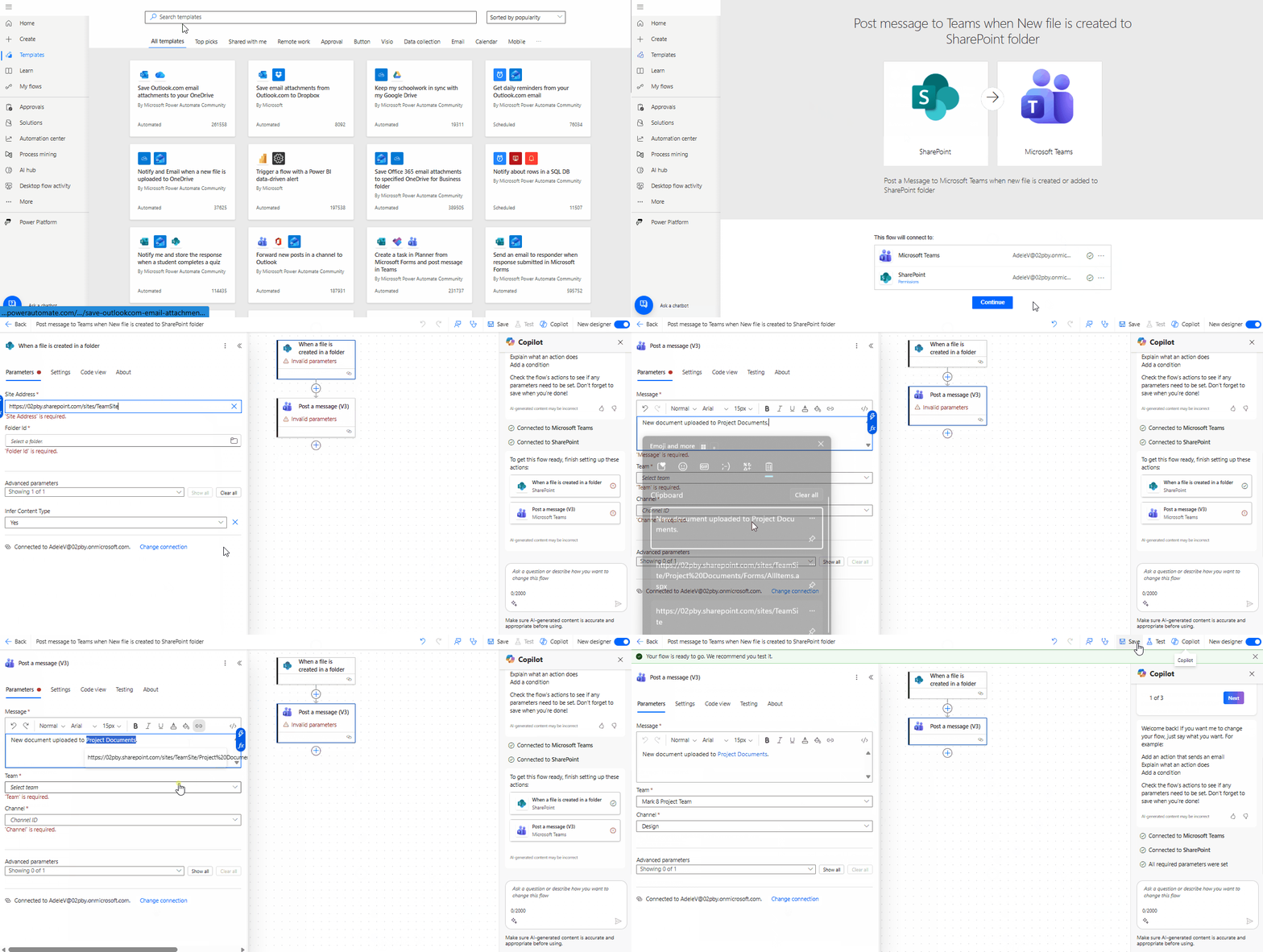
A Modern Upgrade – Post a Message to Teams Channel
Best for: Getting updates in Microsoft Teams instead of your inbox.
- From your SharePoint list or library, in the top menu bar, click Integrate > Power Automate > Create a flow
- On the Create a flow side pane, view the recommended templates. If you don’t see a template that fits your needs at the bottom of the pane, select See your flows.
- Within Power Automate, on the left-hand menu, click Templates and search for Post message to Teams when New file is created in a SharePoint folder
- Click the template and ensure your accounts have a green check mark. If not, fix the connection or sign in to your accounts.
- Select the When a file is created in a folder SharePoint trigger and set the Site Address and Folder Id.
- Select the Post a message (V3) Teams action and provide the message to be sent, the Team, and the channel.
- Select Save. Now you are ready to test the flow, and your team will stay automatically updated in your shared channel.
Power Automate:
Use Copilot in Power Automate
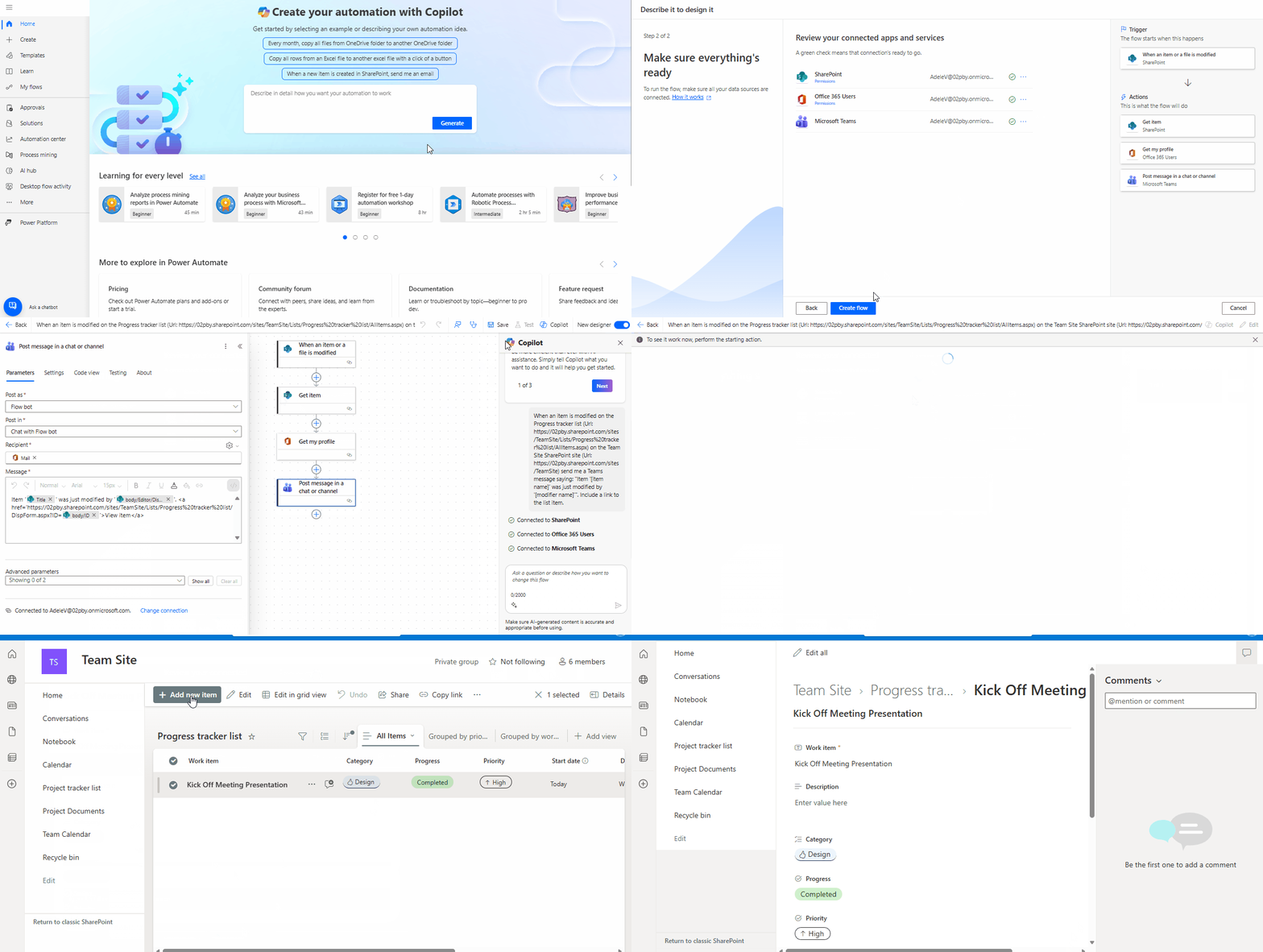
Best for: Creating a custom notification using natural language.
- Go to the Power Automate home page.
- In the large text box that says “Describe in detail how you want your automation to work” type exactly what you want your notification workflow to be. For example:
When an item is modified on the [LIST TITLE] list (Url: [LIST URL]) on the [SITE NAME] SharePoint site (Url: [SITE URL]), send me a Teams message saying: "Item '[item name]' was just modified by '[modifier name]'". Include a link to the list item.
- Copilot will suggest a flow structure for you to review. Refine the structure if needed, using the “Add more details for Copilot to work with” option. Once the structure is set, click Keep it and continue.
- Review the connected apps and services, then click Create flow.
- Review the trigger and each action item to ensure there are no errors, and update if required. After reviewing the workflow, select Save, then test it.
Copilot does most of the heavy lifting, setting up your workflow. It is essential that you review and test the workflow to correct potential errors. Some common errors include:
- Incorrect values in Site Address and List or Library Name.
- An incorrect formula was used to create the Teams message.
Ensure that any use of Power Automate & Copilot complies with your organization’s security, privacy, governance, and acceptable use policies.
Pro Tip: If you rely on Daily or Weekly summaries, you will find that recreating them is more complex than simple rules. We have built a Practical Guide & Template pack that includes pre-made Power Automate flows for these scenarios, so you can get them up and running quickly.
Action Steps for You
You don’t need to become a SharePoint or Power Automate expert to prepare for this change. A few small steps now can prevent surprises later and help you get better notifications.
Review what you are using today
You might have alerts running for projects that ended months ago. Visit your libraries and lists, click the three dots (…) in the menu bar, and select Manage my alerts. If you find alerts you no longer need, delete them. Removing unused alerts now reduces clutter and makes the transition easier.
Think about what really matters
Instead of recreating every alert exactly as it was, ask whether you still need to be notified about every change. When you receive your alerts, do you act on every one? Modern options make it easier to focus your notifications on meaningful updates rather than constant noise.
Practice with a Rule
Find a list or library you use frequently and try creating a SharePoint Rule. Experiment with a simple trigger, such as receiving an email when a new file is added. Seeing how quickly these are set up will help you feel comfortable with this new tool.
Don’t rebuild alone
If an alert feels business critical, especially for reporting, compliance, or leadership visibility, reach out to your IT or SharePoint team for help and guidance. They may already have a better solution in place.
Identify Your Complex Alerts
Most alerts are simple, but some are critical to your team’s workflow. If you rely on daily or weekly summaries of file changes, Power Automate is a good fit.
The bottom line: SharePoint alerts are going away, but your need to stay informed is not.
With a little preparation, this change can lead to clearer, more useful notifications that better fit how and where you work.
What’s Next
Once you start replacing your critical notifications, you may find that simple SharePoint Rules don’t work for every scenario, especially if you rely on daily summaries or complex business logic.
In our next post, SharePoint Alerts Are Retiring: Migrate Your Notifications to Power Automate, we’re going to dive deep into how you can bridge these gaps.
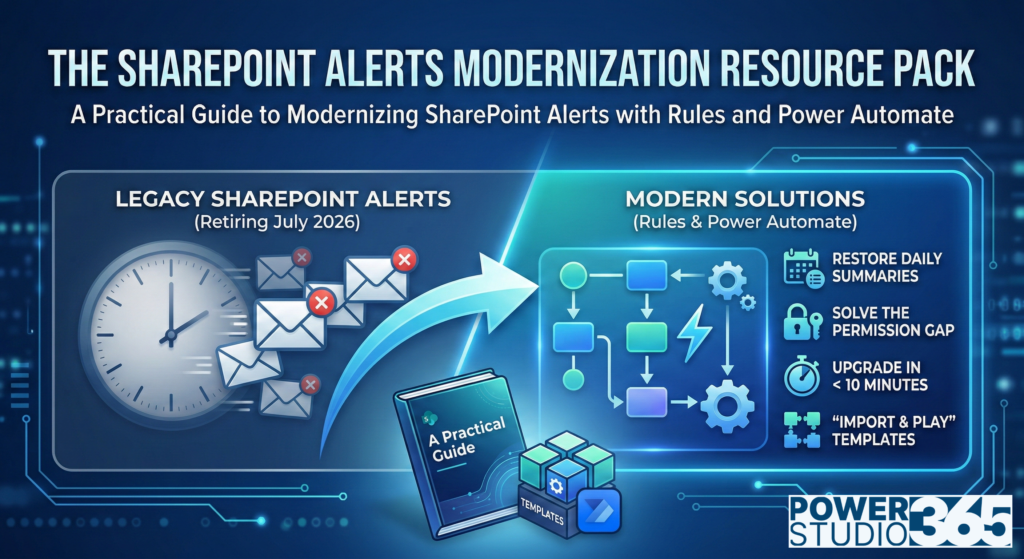
We’ll introduce a turnkey solution to restore your most common notifications (like Daily Digests) without requiring you to write a single line of code.
Stay tuned to learn how to turn this retirement into a major upgrade for your team’s workflow.
Thank you for reading!
Power Studio365 focuses on practical guidance, design patterns, and real-world lessons from working with Microsoft 365, SharePoint, Power BI, and the Power Platform.
The goal is simple: help you work smarter, avoid common pitfalls, and build solutions that actually hold up in day-to-day use.
New posts are published regularly, so check back often—or subscribe to stay up to date on new content.
Leave a Reply