
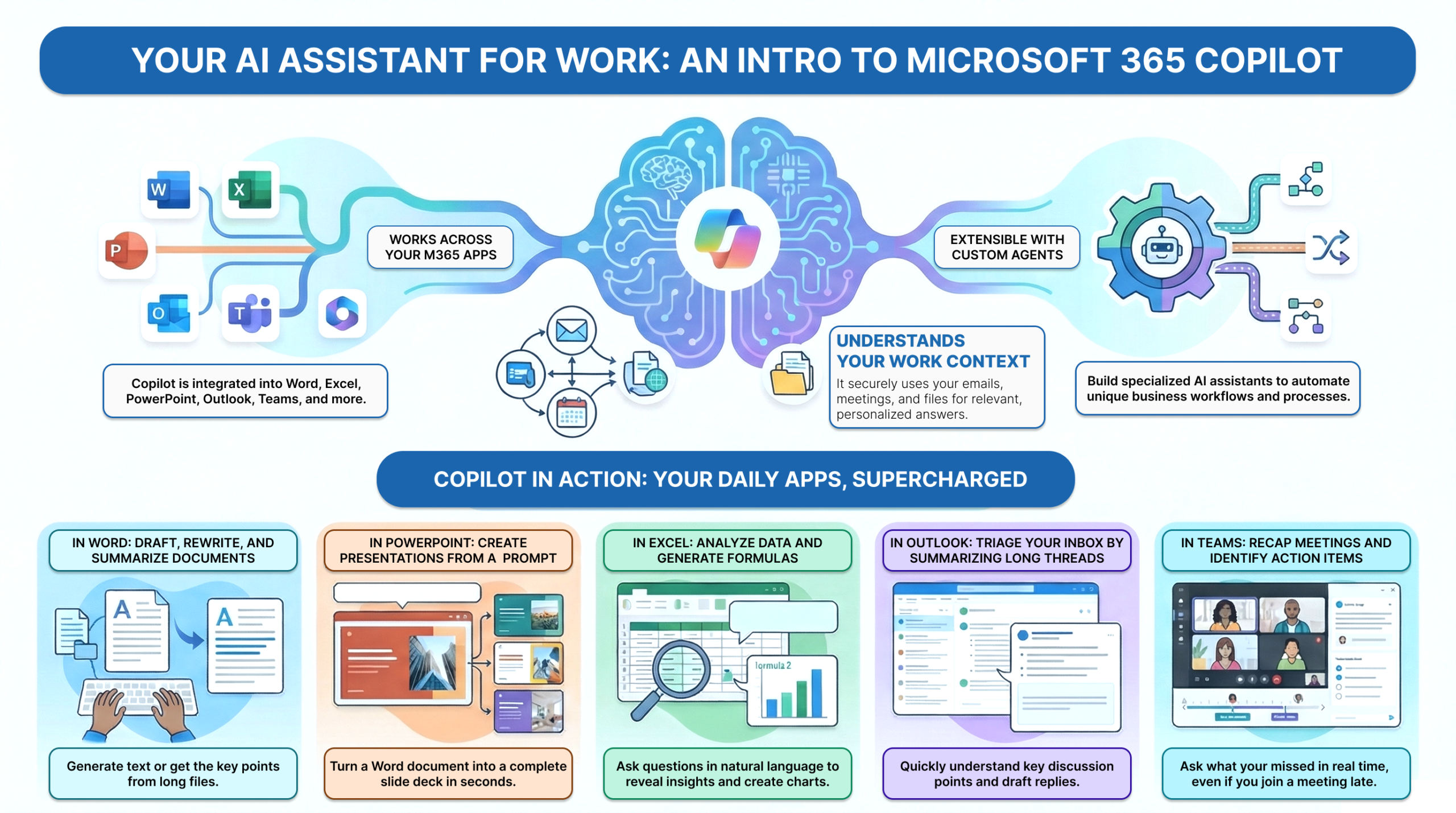
If you have Microsoft 365 Copilot, chances are you’ve experimented with it. You might have asked it to summarize an email, tried to use it to improve writing within a document, or utilized it during a meeting.
After those initial attempts, you may feel unsure about the next steps.
Not because Copilot lacks usefulness, but because no one shows you how to integrate it into your daily routine instead of treating it as a one-time experiment. Imagine beginning your workday by opening Outlook and requesting a thread summary. This simple step becomes a habit: a trigger like ‘opening Outlook,’ followed by the routine ‘requesting a thread summary,’ and culminating in the reward of ‘clear priorities for the day.’
Why Copilot Feels Powerful but Hard to Adopt
Most guidance around Microsoft 365 Copilot focuses on what it can do.
That’s helpful, but it overlooks the parts that many people actually find challenging:
- Where should I start?
- Which scenarios are worth repeating?
- Why do some results feel generic?
- How do I use Copilot without slowing myself down?
When everything is possible, nothing feels obvious, so Copilot stays on the sidelines instead of becoming part of everyday work.
Adoption rarely fails due to missing features. More often, it fails because many lack a clear starting point.
The Right Way to Start with Microsoft 365 Copilot
The quickest way to build confidence is to begin with tasks where Copilot delivers immediate, low-risk benefits.
For most users, that order looks like this:
- OneDrive — summarize and understand documents without opening them
- Outlook — summarize threads and draft responses
- Word — create and refine first drafts
- Teams — turn meetings and chats into clear action items
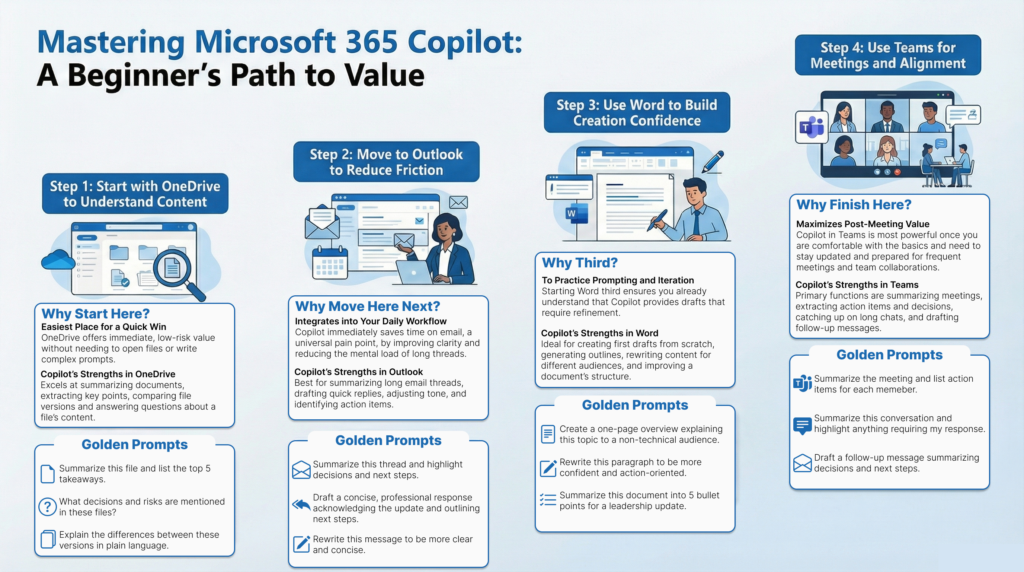
These scenarios are familiar and easily reproducible. Once you gain confidence, branching out into PowerPoint, Excel, and more advanced applications becomes much simpler.
From “I Tried Copilot” to “I Use Copilot”
Bridging the gap between trying Copilot and truly integrating it into your workflow is exactly why we created Getting Started with Microsoft 365 Copilot – Your Quick-Start Guide to Working Smarter with Microsoft 365 Copilot.
This isn’t just a list of features. It’s a practical accelerator for everyday Microsoft 365 Copilot users.
The goal: to build your confidence, not overwhelm you with details. Here is a short preview of how the guide helps you get there.
Start Your Day in Outlook
Tip:
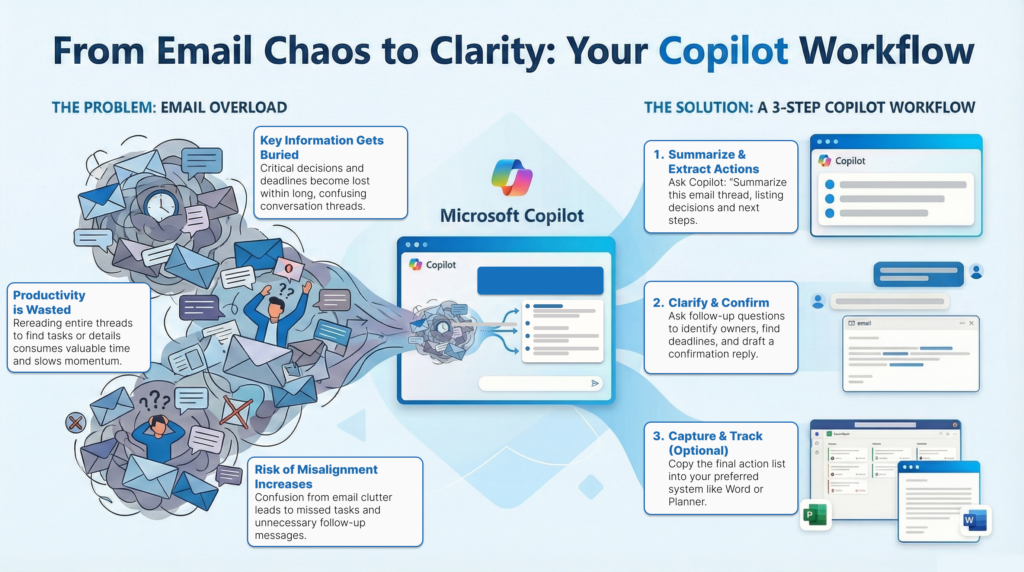
Don’t start your day by scanning through long email threads in your inbox. Start by asking Copilot to summarize the thread, then follow up by asking for key details.
Prompt:
“Summarize this email thread and highlight key decisions, open questions, and next steps.”
Outcome:
You get immediate context without reading every message and clear priorities instead of inbox noise.
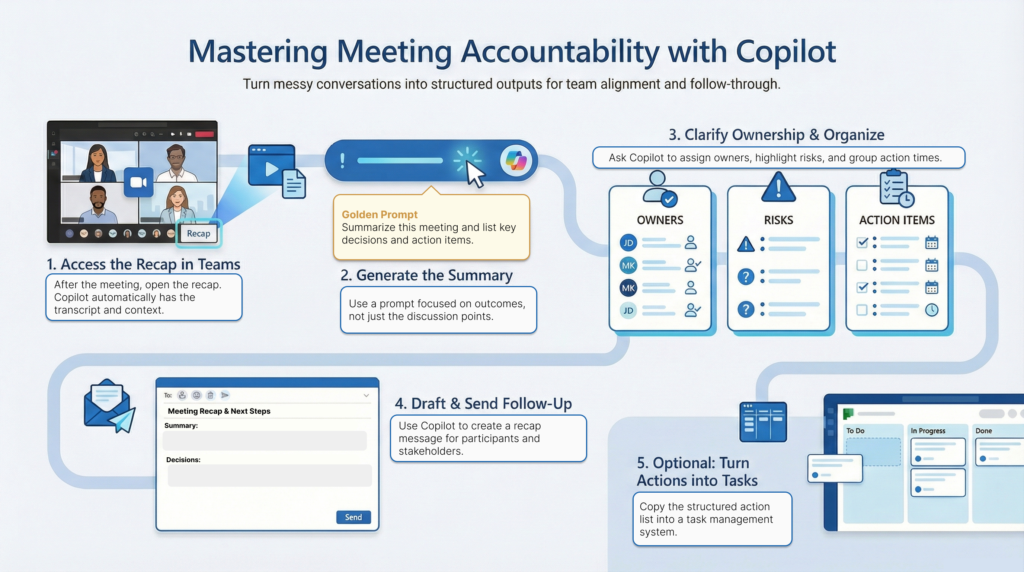
Turn Meetings into Actions
Tip:
Meetings typically don’t fail because of bad discussions. They fail because the follow-up is unclear.
Prompt:
“Summarize this meeting and extract action items with owners and deadlines.”
Outcome:
Copilot turns conversations into a clear action list you can share or move directly into Planner, Loop, or other task management tools.
Ready to Use Copilot with Confidence?
If Copilot feels interesting but inconsistent, this guide was built for you.
Getting Started with Microsoft 365 Copilot – Your Quick-Start Guide to Working Smarter with Microsoft 365 Copilot expands on these examples with:
- A clear mental model for how Copilot works
- A simple prompting framework you can reuse everywhere
- 10 quick wins for immediate productivity gains
- 5 repeatable workflows you continually use
Leave a Reply