

Power Automate doesn’t always fail loudly. A flow can encounter an unhandled error, stop mid-execution, and log itself as failed without anyone noticing. If no one checks the run history, the first sign of Power Automate errors is a call about a process that has been broken for days.
It doesn’t have to work that way. Good error handling in Power Automate can fix it. Every failure can trigger an automatic notification and log a structured record without hardcoding contact details into every flow.
Getting there requires three components: a detection pattern, a logging strategy, and a reusable notification framework.
To make this concrete, we’ll follow Dusty Bottle Brewery’s order-routing flow throughout this post. Their Create Order workflow started failing on every run. No error email went out. No Teams ping fired. Orders sat unprocessed for days, until someone at Dusty Bottle called the distributor to check on a delivery no one had placed.
Quick Start
If you just want the fix, here’s the short version:
- Wrap your flow’s actions in a Scope named TRY.
- Add a second Scope named CATCH, configured via Run After (Settings tab) to execute when actions in the TRY scope have failed or have timed out.
- Inside CATCH, filter the
result('TRY')for failed or timed-out actions, then log the result to SharePoint or Dataverse before sending a notification. - Add a Terminate action with status Failed at the end of CATCH so the run history reflects what actually happened.
- Centralize notifications in a single reusable child flow rather than hardcoding contacts in every flow.
Error Handling Foundations: Scope Actions and Configure Run After
Two concepts do all the work in this post.
Scope actions are containers. Group a set of related actions inside a Scope, and Power Automate treats that group as a single unit with its own status. If an action within the Scope fails and is not caught by other steps in the same scope, the Scope is marked as failed. That single status is what you’ll use to trigger your error handling logic.
Configure Run After Settings. Controls when each action executes based on the previous action’s outcome. By default, every action runs only when the previous action succeeded. To change that, select the action to open the configuration pane. Go to the Settings tab and find the Run After option. You will see four options and can select more than one. Select actions also let Run After target more than one previous action, not just the one directly above.
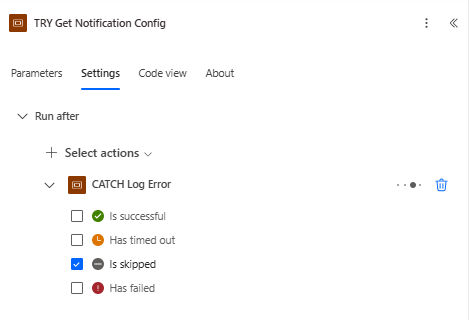
These two features form the foundation of every pattern in this post. A Scope groups the actions you want to protect. The Configure Run After setting specifies when the next action should fire, depending on whether the Scope succeeded or failed.
Dusty Bottle’s order routing flow will use both throughout. The actions that move orders into SharePoint will live inside a Scope. You’ll configure everything that handles a failure to run only when that Scope fails.
Right-Sizing Your Error Handling
Not every flow needs the full framework. A Friday reminder does not need adaptive cards or an error log.
Approach this in three tiers based on business impact.
Low-risk flows generally run on a schedule where a failure has no immediate consequences. For these, a simple Configure Run After setup that sends a basic email notification is enough.
Medium-risk flows support a business process where someone notices and fixes failures within a day or two. The Try-Catch pattern plus a Teams notification gets you there without overbuilding.
Business-critical flows are those where a silent failure causes real damage before anyone discovers it. These get the full treatment: structured error detection, centralized logging, automatic notifications, and a production readiness check before going live.
The rest of this post focuses on business-critical flows, since that’s where the full framework earns its complexity. The patterns are modular. Pull what fits your requirements.
Detection: Try-Catch-Finally with Scope Actions
The Try-Catch pattern separates your flow’s primary logic from its error-handling logic, so a failure in one doesn’t block the other from running.
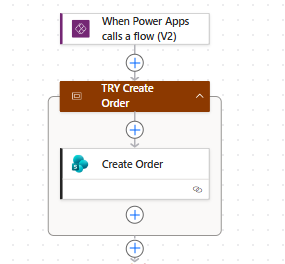
Add a scope action and name it clearly (TRY Create Order). Within this scope, add the set of actions that accomplish a specific workflow task.
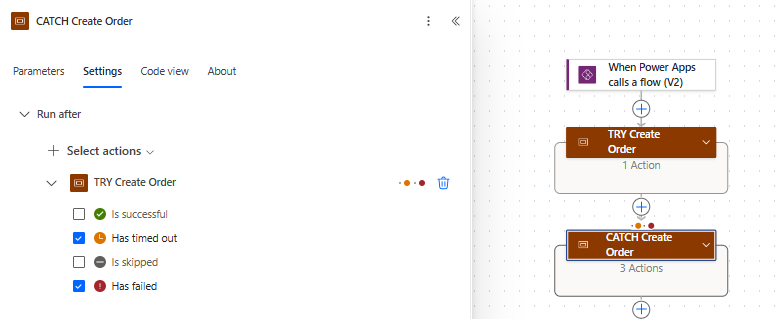
Add a second Scope after it and give it a descriptive name (CATCH Create Order). Open the scope’s Settings tab, then under Run After, uncheck successful and check has failed and has timed out. This scope only executes when the TRY_Order_Routing scope has a failed action.
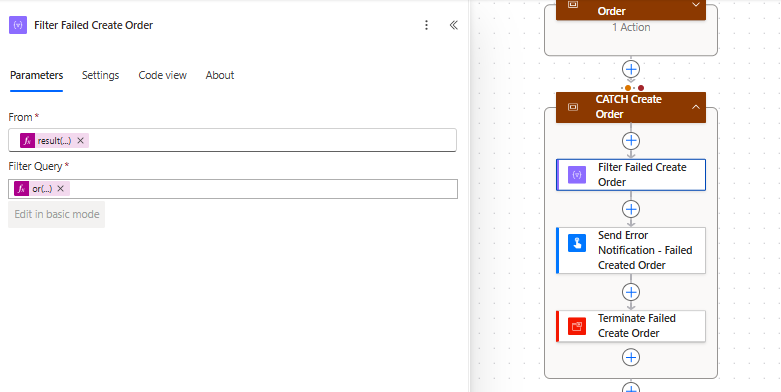
Inside the CATCH_Order_Routing, add a Filter array action from result('TRY_Create_Order') with a condition or(equals(item()?['status'], 'Failed'), equals(item()?['status'], 'TimedOut')). This returns the action name and error message for the failure.
Add a Terminate action at the end of CATCH_Order_Routing with status set to Failed. Without it, the run can show Succeeded once CATCH completes successfully. The terminate action forces the run history to match the real outcome.
Optional: add a third scope named FINALLY after CATCH, with Run After configured to fire on all four conditions, for cleanup steps that should always run.
One thing to watch for: result() returns only top-level actions within the Scope. If a failure occurs within a nested Condition or Switch, you see the status of that container action, not the specific step that failed inside it.
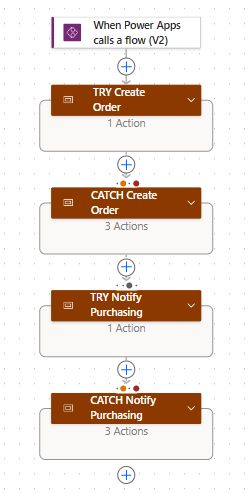
For Dusty Bottle, the Order Routing workflow is triggered by an Inventory Power App and pairs the TRY/CATCH pattern twice. Once around creating the order record, once around notifying purchasing.
Response: Logging Errors to SharePoint or Dataverse
A notification tells you something broke. A log tells you what keeps breaking. Those are different problems, and you need both to manage a production flow environment effectively.
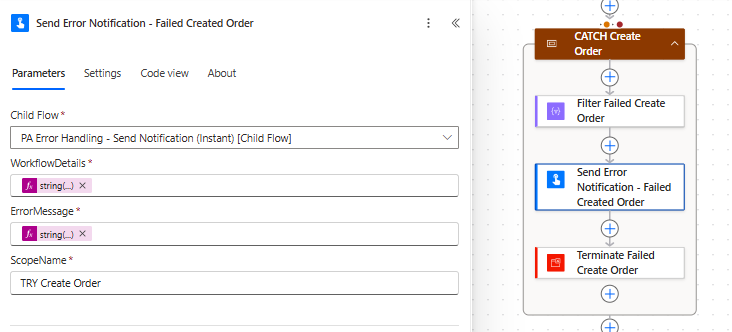
None of this happens inside CATCH itself. CATCH calls a single reusable child flow and passes the failure details. That child flow handles the actual logging and then the notification.
At a minimum, the log record should capture the flow display name, flow ID, environment, failed action, error message, scope name, and timestamp.
The first three come from the parent flow’s workflow() object, passed to the child’s workflowDetails string input. The failed action and error message go to the child’s errorMessage string input, and the scope name is manually added to the scopeName input.
A SharePoint list works well for most environments. It’s accessible, easy to query, and requires no additional licensing.
Dataverse is the better choice if your organization already uses it or if you need to query error records from multiple flows in a single place.
One thing to watch for: the child flow should write the log record before sending the Teams notification. If the notification step fails, the log entry must still exist.
Response: Centralized Failure Notifications and the Reusable Flow
The straightforward approach to failure notifications is to add a Send an email or Post a Teams message action to every CATCH scope with contact details entered directly into the flow. It works until someone leaves the team or you have thirty flows needing updates.
A better approach is to separate notification configuration from flow logic and store contact information in a centralized list.
The centralized configuration list
Create a SharePoint list to store notification details for each flow:
- Flow display name
- Flow id
- Technical contact
- Functional contact
- Teams channel name
- Teams channel id
- Teams tag id
- Is private channel
- Environment
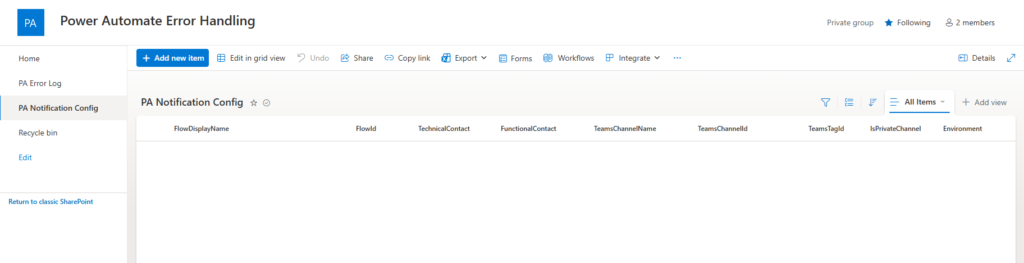
Each row corresponds to one flow. When a flow fails, the error-handling steps look up its record in this list and use the information it stores to route the notification.
For a full walkthrough of setting up this list and the SharePoint setup workflow that automatically populates it, see the 2024 error handling post on ethanguyant.com. The architecture carries forward directly into what’s built here.
The reusable child flow
Build the lookup-and-notify logic once as a child flow and call it from any CATCH scope with the Run a Child Flow action. The child flow needs to be solution-aware so that the same child flow can be called from parent flows across different solutions.
A common pattern: keep the reusable error-handling child flow in a dedicated solution (such as Power Automate Error Handling) and call it from parent flows across all other solutions in the environment.
The child flow accepts three inputs:
workflowDetails: string(workflow())
errorMessage: the filtered result from your CATCH scope (string(body('Filter_TRY_Results')))
scopeName: the name of the TRY scope that failed
From there, the child flow:
- Parses the workflow details
- Writes to the error log
- Queries the SharePoint configuration list using the flow ID
- Retrieves the appropriate Teams channel and contact tokens
- Posts the notification.
Upgrading to adaptive cards
The 2024 architecture posts a standard Teams message with an HTML table. Replacing it with an adaptive card makes the notification more readable and allows including action buttons, such as a direct link to the failed flow run.
Use the Post an Adaptive Card to a Teams channel action in place of the standard message action. The card body is a JSON payload. A minimal error notification card needs four elements: the flow name, the environment, the error details table, and a View Flow Run button pointing to the run URL.
The run URL expression is:
concat('https://make.powerautomate.com/environments/', workflow()?['tags']?['environmentName'], '/flows/', workflow()?['tags']?['logicAppName'], '/runs/', workflow()?['run']?['name'])One thing worth flagging: posting an adaptive card as the flow bot works reliably in standard and shared channels. Private channels are a known gap in the Teams connector. Do not build a critical alerting path on private-channel delivery without first testing whether you can update the adaptive card action to post as a user (e.g., a service account) in your tenant.
For Dusty Bottle, the team builds the child flow once and shares it across the order routing flow and any other flows that use error notifications. Each has its own row in the configuration list. Swapping a contact or channel involves editing a single list item.
Testing Your Error Handling
Building a CATCH scope and assuming it will work is a common mistake. The notification logic, the SharePoint lookup, the adaptive card formatting, and the Terminate action all need to be verified before the flow goes to production.
How to force a failure safely
The cleanest approach is to add a temporary Compose action inside your TRY scope with an expression that always fails. Referencing a variable that does not exist works reliably: variables(‘nonexistent_variable’).
Run the flow, confirm the CATCH scope executes, then delete the Compose action before deploying.
A second option is to temporarily add “has succeeded” to the CATCH scope’s Configure Run After settings alongside “has failed”. This allows the CATCH path to execute on every run without triggering a real error. It is useful for testing the notification format and SharePoint log write without breaking anything. Remove the has succeeded condition before go-live.
What to verify during testing
Run through this checklist after each test:
- The CATCH scope fires when the TRY scope fails.
- The SharePoint or Dataverse log record is written with all expected fields populated.
- The Teams notification arrives in the correct channel.
- The right contacts are mentioned in the notification.
- The error message in the notification and log matches the actual failure.
- The run history shows the flow as Failed rather than Succeeded.
One thing to watch for: if you use a child flow for notifications, test it independently first with hardcoded inputs before testing the parent flow end-to-end. Isolating the layers makes it easier to identify where a problem is when something does not fire as expected.
The Production Readiness Standard
A flow is not production-ready because it works when nothing goes wrong. It is production-ready when it handles failure as deliberately as success. This checklist is the gate. Every business-critical flow should be tested and cleared before going live.
Work through it in layers: detection first, then response, then verification.
Detection
- Every action with a meaningful risk of failure has been evaluated and categorized by impact.
- Business-critical actions are grouped inside a named TRY scope.
- The CATCH scope Configure Run After is set to execute on has failed and has timed out, with is successful, unchecked.
- A Terminate action with status Failed exists at the end of the CATCH scope.
- If a FINALLY scope is needed for cleanup, it is configured to run on all four Configure Run After conditions.
Response
- The flow has a corresponding record in the centralized notification configuration list.
- The technical contact in that record is current and confirmed.
- The Teams channel ID and tag ID in the configuration list have been verified against the actual channel.
- A log record is written to SharePoint or Dataverse before the notification fires.
- The log record captures flow name, flow ID, environment, action name, error message, scope name, and timestamp.
Verification
- A forced failure test has been run in a non-production environment.
- The CATCH scope fired and completed successfully during the test.
- The test log record is present, and all fields are populated correctly.
- The Teams notification arrived in the correct channel with the correct contacts mentioned.
- The run history shows the flow as Failed after the test, not Succeeded.
Maintainability
- The flow is stored in a solution, not in My Flows.
- If other solutions call the shared child flow, deploy the error-handling solution to each environment before any solution that depends on it. Letting each consuming solution auto-bundle the dependency at export works once, but quickly creates duplicate component layers when more than one solution does it.
- The flow display name is descriptive enough that someone unfamiliar with it can identify its purpose from the run history alone.
- The flow description field documents the business process it supports and the owner
Dusty Bottle’s order routing flow clears every item on this list before it touches production. The addition of a new column that broke it in the opening scenario still happens. The difference is that this time, a log record appears in SharePoint, a Teams notification routes to the right channel before anyone arrives at the brewery, and the fix is in before the production team starts their day.
Wrap-Up
Dusty Bottle’s order routing flow still hits the required field error. This time, a log record lands in SharePoint, a Teams alert reaches the right person before the brewery opens, the fix gets made within the hour, and the order ships to the distributor before the brewmaster runs short on supplies.
That’s what structured error handling in Power Automate actually buys you: not fewer failures, but failures that surface in minutes instead of days.
Build the three layers once, run them through the readiness checklist, and every flow after the first one is just a config-list entry away from the same coverage.
Get the Build Guide
The post covers the pattern. The build guide covers the implementation. Every Configure Run After setting on every scope, the adaptive card JSON for shared and private channels, and the Config Values Helper flow that looks up your Teams channel and tag IDs so you don’t have to find them manually. It also covers five testing flows that verify each failure scenario before you connect anything to a real business flow.

Thank you for reading!
Power Studio365 focuses on practical guidance, design patterns, and real-world lessons from working with Microsoft 365, SharePoint, Power BI, and the Power Platform.
The goal is simple: help you work smarter, avoid common pitfalls, and build solutions that actually hold up in day-to-day use.
Build Faster. Build Smarter. Build with PowerStudio365.
New posts are published regularly, so check back often — or subscribe to stay up to date when new content is released.
Leave a Reply